Fotograf boyutlarini online ucretsiz degistirin. Piksel, yuzde veya sosyal medya sablonlariyla boyutlandirin.
veya bırakın, yapıştırın ya da buluttan seçin





The image resizer offers multiple resize modes for different needs. Pick the method that matches your use case.
Enter an exact width and height in pixels, centimeters, inches, or millimeters. Leave one field empty to scale proportionally. Set DPI for print-ready output.
Scale an image up or down by a percentage from 1% to 400%. This method keeps the original aspect ratio and works well for quick proportional adjustments.
Select a predefined ratio such as 16:9, 4:3, 1:1, or 9:16. The tool adjusts the image to fit the selected ratio with your choice of crop, stretch, or fill handling.
Resize to common screen widths with one click. Choose from Email (768px), Desktop (1920px), Tablet (768px), or Mobile (320px) presets.
Pick the platform and post type. The image resizer applies the correct dimensions automatically. Supports Instagram, Facebook, X, Pinterest, and LinkedIn.
Change the output format during resize. Convert between JPG, PNG, WebP, GIF, BMP, TIFF, TGA, and ICO. Keep the original format or switch to a smaller one.
When the target dimensions do not match the original aspect ratio, the image resizer offers 5 handling options. Stretch fills the exact dimensions but may distort the image. Crop fills the area and trims the overflow. White bars, black bars, and blurred bars fit the image inside the target size and fill the remaining space without cropping.
Crop is the default for social media and aspect ratio modes because platforms display images at fixed ratios. Stretch works best when you need exact pixel dimensions and distortion is acceptable. The blurred bar option creates a seamless look for portrait photos placed in landscape frames.
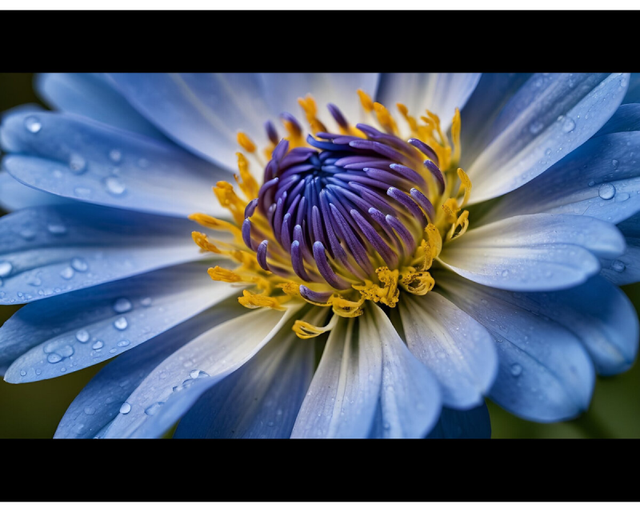
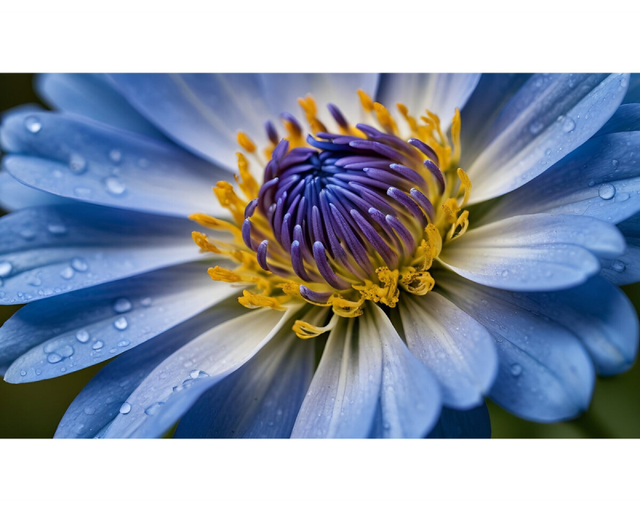
Select the platform and post type. The image resizer applies the correct dimensions automatically.
Posts at 1080x1080 pixels. Stories at 1080x1920 pixels. The image resizer crops or fills to fit the square or vertical format.
Posts at 1200x630 pixels. Stories at 1080x1920 pixels. Optimized dimensions prevent Facebook from applying extra compression to your image.
Posts at 1200x675 pixels. This 16:9 ratio fills the entire preview card in the timeline without cropping.
Pins at 1000x1500 pixels. The 2:3 vertical format takes up more screen space in the Pinterest feed and gets higher engagement.
Posts at 1200x627 pixels. Professional images at the recommended size display sharply on both desktop and mobile LinkedIn feeds.
Thumbnails at 1280x720 pixels. Channel banners at 2560x1440 pixels. Resize images to YouTube specifications to avoid blurry previews.
The image resizer works as a resolution changer and DPI converter in one tool. Switch from pixels to centimeters, inches, or millimeters and set the DPI between 10 and 1200. The tool calculates the final pixel dimensions based on your physical size and DPI setting.
Use 72 DPI for screens and web images. Use 150 DPI for standard prints. Use 300 DPI for high-quality prints and professional output. The resolution converter adjusts the image without resampling artifacts when possible, keeping details sharp at the new size.
Upload multiple images and resize them all at once with the same settings. The batch image resizer processes each file individually and makes every result available for download. This saves time when preparing images for a website, online store, or social media campaign.
All uploads use encrypted connections. The processing is fully automated. No watermarks are added and no files are shared with third parties. Your images are not used for AI training.
Drag and drop your file or click to browse. The image resizer accepts JPG, PNG, GIF, BMP, WebP, TIFF, and more.
Pick a mode: dimensions, percentage, aspect ratio, device preset, or social media preset. Set your target size and resize handling.
Click Resize to start. Download the resized image when processing finishes. Your original file stays unchanged.
Upload your image to the resizer, choose a resize method such as dimensions, percentage, or social media preset, and click Resize. The image resizer changes the dimensions automatically. Download the resized image when processing is done. No signup or software installation is required.
Yes, the image resizer is free to use. You can resize images without creating an account. Free users can process a limited number of files per day. Premium plans offer higher daily limits and additional features for larger workloads.
Downscaling an image preserves quality because the tool removes pixels the display does not need. Upscaling above the original resolution may reduce sharpness because the tool must generate new pixels. For best results when enlarging, keep the scale factor under 200% or use the upscale image tool for AI-enhanced enlargement.
The image resizer accepts all common image formats including JPG, PNG, GIF, BMP, WebP, and TIFF. You can save the resized output in 9 formats: JPG, PNG, GIF, BMP, WebP, TIFF, TGA, ICO, or keep the original format.
Select the Social Media resize mode and choose Instagram Posts (1080x1080) or Instagram Story (1080x1920) from the dropdown. The image resizer applies the correct dimensions and crops or fills the image to fit. Upload, select, and click Resize.
Yes, the image resizer supports batch processing. Upload multiple files, pick your resize settings, and process them all in one click. Each image is resized with the same settings and available for individual download.
Resizing changes the dimensions of the entire image. The full image is preserved at a new size. Cropping removes parts of the image to fit specific dimensions. The image resizer offers both options: use Stretch to resize without cropping, or use Crop to fill exact dimensions and trim the overflow.
Yes, all uploads use encrypted connections. The processing is fully automated. Your files are not used for AI training.
Kalite kaybetmeden online resim boyutu degistirme adim adim rehberi.
Makaleyi oku
Instagram, Facebook, X, Pinterest ve LinkedIn icin dogru fotograf boyutlari.
Makaleyi oku
Resimleri online hizlica kirpin - adim adim rehber.
Makaleyi oku
JPEG ve PNG formatlarini karsilastirarak resimleriniz icin dogru formati secin.
Makaleyi oku
Daha hizli sayfa yukleme sureleri ve daha iyi web performansi icin resimlerinizi optimize edin.
Makaleyi oku