Thay doi kich thuoc anh truc tuyen mien phi. Thay doi theo pixel, phan tram hoac mau mang xa hoi.
hoặc thả, dán, hoặc chọn từ đám mây





Công cụ thay đổi kích thước ảnh cung cấp nhiều chế độ cho các nhu cầu khác nhau. Chọn phương pháp phù hợp với mục đích sử dụng của bạn.
Nhập chính xác chiều rộng và chiều cao bằng pixel, cm, inch hoặc mm. Để trống một trường để thu phóng theo tỷ lệ. Đặt DPI cho đầu ra sẵn sàng in.
Thu phóng ảnh lên hoặc xuống theo phần trăm từ 1% đến 400%. Phương pháp này giữ nguyên tỷ lệ gốc và phù hợp cho điều chỉnh tỷ lệ nhanh.
Chọn tỷ lệ có sẵn như 16:9, 4:3, 1:1 hoặc 9:16. Công cụ điều chỉnh ảnh cho vừa tỷ lệ đã chọn với tùy chọn cắt, kéo giãn hoặc lấp đầy.
Thay đổi kích thước theo chiều rộng màn hình phổ biến chỉ với một cú nhấp. Chọn từ Email (768px), Desktop (1920px), Tablet (768px) hoặc Mobile (320px).
Chọn nền tảng và loại bài đăng. Công cụ tự động áp dụng kích thước chính xác. Hỗ trợ Instagram, Facebook, X, Pinterest và LinkedIn.
Thay đổi định dạng đầu ra khi resize. Chuyển đổi giữa JPG, PNG, WebP, GIF, BMP, TIFF, TGA và ICO. Giữ định dạng gốc hoặc chuyển sang định dạng nhỏ hơn.
Khi kích thước mục tiêu không khớp tỷ lệ gốc, công cụ cung cấp 5 tùy chọn xử lý. Kéo giãn lấp đầy kích thước chính xác nhưng có thể méo ảnh. Cắt lấp đầy vùng và cắt bỏ phần thừa. Viền trắng, viền đen và viền mờ đặt ảnh vừa kích thước mục tiêu và lấp đầy phần còn lại mà không cắt.
Cắt là mặc định cho chế độ mạng xã hội và tỷ lệ khung hình vì các nền tảng hiển thị ảnh ở tỷ lệ cố định. Kéo giãn phù hợp khi bạn cần kích thước pixel chính xác và méo ảnh chấp nhận được. Tùy chọn viền mờ tạo giao diện liền mạch cho ảnh dọc đặt trong khung ngang.
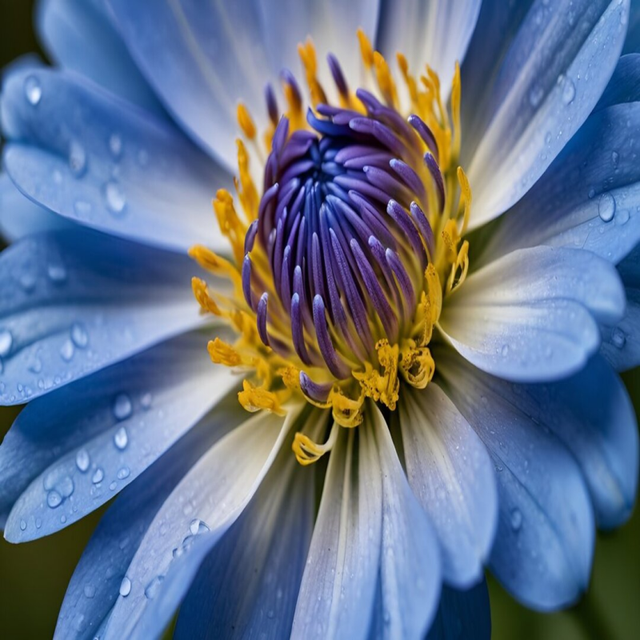
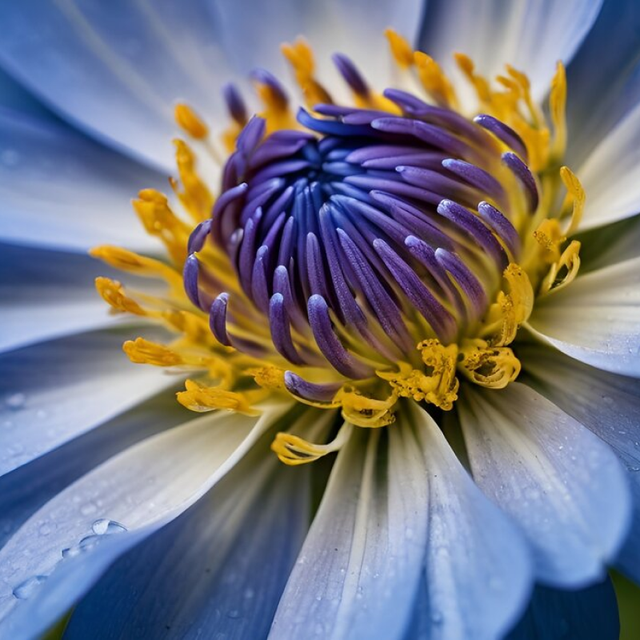
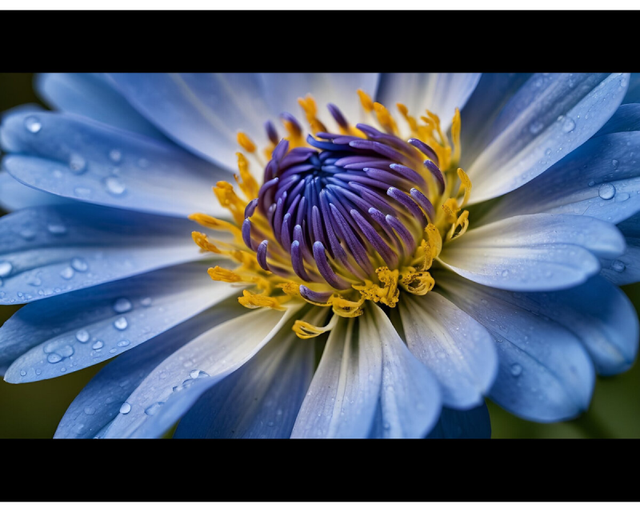
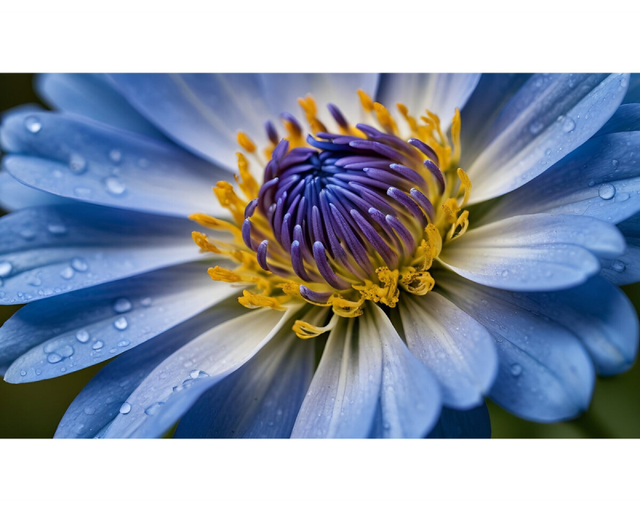
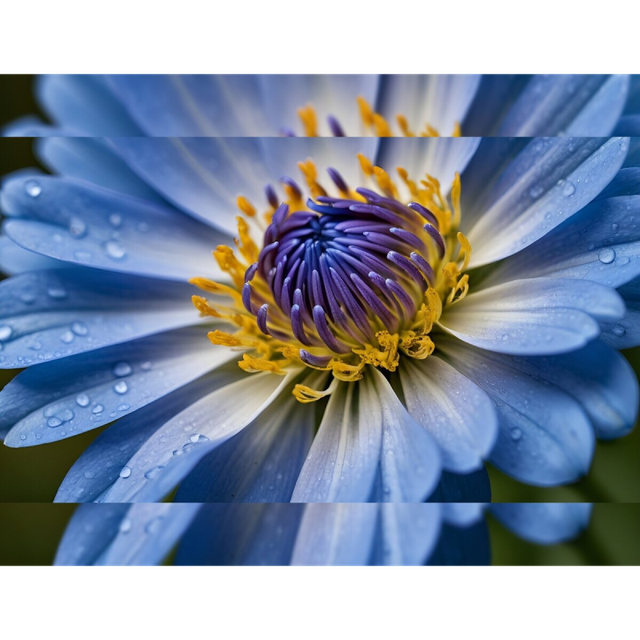
Chọn nền tảng và loại bài đăng. Công cụ tự động áp dụng kích thước chính xác.
Bài đăng 1080x1080 pixel. Stories 1080x1920 pixel. Công cụ cắt hoặc lấp đầy để vừa định dạng vuông hoặc dọc.
Bài đăng 1200x630 pixel. Stories 1080x1920 pixel. Kích thước tối ưu giúp Facebook không nén thêm ảnh của bạn.
Bài đăng 1200x675 pixel. Tỷ lệ 16:9 lấp đầy toàn bộ thẻ xem trước trên dòng thời gian mà không bị cắt.
Pin 1000x1500 pixel. Định dạng dọc 2:3 chiếm nhiều không gian màn hình trong feed Pinterest và tăng tương tác.
Bài đăng 1200x627 pixel. Ảnh chuyên nghiệp ở kích thước khuyến nghị hiển thị sắc nét trên cả desktop và mobile LinkedIn.
Thumbnail 1280x720 pixel. Banner kênh 2560x1440 pixel. Thay đổi kích thước ảnh theo thông số YouTube để tránh xem trước bị mờ.
Công cụ thay đổi kích thước ảnh hoạt động như bộ chuyển đổi độ phân giải và DPI trong một. Chuyển từ pixel sang cm, inch hoặc mm và đặt DPI từ 10 đến 1200. Công cụ tính toán kích thước pixel cuối cùng dựa trên kích thước vật lý và cài đặt DPI.
Sử dụng 72 DPI cho màn hình và ảnh web. Sử dụng 150 DPI cho bản in tiêu chuẩn. Sử dụng 300 DPI cho bản in chất lượng cao và đầu ra chuyên nghiệp. Bộ chuyển đổi độ phân giải điều chỉnh ảnh mà không tạo lỗi lấy mẫu lại khi có thể, giữ chi tiết sắc nét ở kích thước mới.
Tải nhiều ảnh lên và thay đổi kích thước tất cả cùng lúc với cùng cài đặt. Công cụ xử lý từng tệp riêng lẻ và cung cấp mọi kết quả để tải về. Điều này tiết kiệm thời gian khi chuẩn bị ảnh cho website, cửa hàng trực tuyến hoặc chiến dịch mạng xã hội.
All uploads use encrypted connections. The processing is fully automated. No watermarks are added and no files are shared with third parties. Your images are not used for AI training.
Kéo và thả tệp hoặc nhấp để duyệt. Công cụ chấp nhận JPG, PNG, GIF, BMP, WebP, TIFF và nhiều định dạng khác.
Chọn chế độ: kích thước, phần trăm, tỷ lệ khung hình, thiết bị hoặc mạng xã hội. Đặt kích thước mục tiêu và cách xử lý.
Nhấn Resize để bắt đầu. Tải ảnh đã thay đổi kích thước khi xử lý xong. Tệp gốc của bạn không bị thay đổi.
Tải ảnh lên công cụ, chọn phương pháp như kích thước, phần trăm hoặc mạng xã hội, rồi nhấn Resize. Công cụ tự động thay đổi kích thước. Tải ảnh đã resize khi xử lý xong. Không cần đăng ký hay cài đặt phần mềm.
Có, công cụ miễn phí sử dụng. Bạn có thể thay đổi kích thước ảnh mà không cần tạo tài khoản. Người dùng miễn phí có thể xử lý số lượng tệp giới hạn mỗi ngày. Gói Premium cung cấp giới hạn cao hơn và tính năng bổ sung cho khối lượng công việc lớn.
Thu nhỏ ảnh giữ nguyên chất lượng vì công cụ loại bỏ các pixel mà màn hình không cần. Phóng to vượt quá độ phân giải gốc có thể giảm độ nét vì công cụ phải tạo pixel mới. Để có kết quả tốt nhất khi phóng to, giữ hệ số dưới 200% hoặc sử dụng công cụ nâng cao chất lượng ảnh bằng AI.
Công cụ chấp nhận tất cả định dạng ảnh phổ biến bao gồm JPG, PNG, GIF, BMP, WebP và TIFF. Bạn có thể lưu đầu ra ở 9 định dạng: JPG, PNG, GIF, BMP, WebP, TIFF, TGA, ICO hoặc giữ định dạng gốc.
Chọn chế độ Mạng xã hội và chọn Instagram Posts (1080x1080) hoặc Instagram Story (1080x1920) từ danh sách. Công cụ áp dụng kích thước chính xác và cắt hoặc lấp đầy ảnh cho vừa. Tải lên, chọn và nhấn Resize.
Có, công cụ hỗ trợ xử lý hàng loạt. Tải nhiều tệp lên, chọn cài đặt resize và xử lý tất cả chỉ với một cú nhấp. Mỗi ảnh được thay đổi kích thước với cùng cài đặt và có thể tải về riêng.
Resize thay đổi kích thước toàn bộ ảnh. Toàn bộ ảnh được giữ nguyên ở kích thước mới. Crop loại bỏ phần ảnh để vừa kích thước cụ thể. Công cụ cung cấp cả hai tùy chọn: dùng Stretch để resize mà không cắt, hoặc dùng Crop để lấp đầy kích thước chính xác và cắt phần thừa.
Yes, all uploads use encrypted connections. The processing is fully automated. Your files are not used for AI training.
Hướng dẫn từng bước để thay đổi kích thước ảnh online mà không mất chất lượng.
Đọc bài viết
Kich thuoc anh dung cho Instagram, Facebook, X, Pinterest va LinkedIn.
Đọc bài viết
So sanh JPEG va PNG de chon dinh dang phu hop cho anh cua ban.
Đọc bài viết
Tối ưu hóa ảnh để trang web tải nhanh hơn và hoạt động hiệu quả hơn.
Đọc bài viết