Logo File Formats: How to Choose the Right One
Essential guide to selecting the right logo file format for web, print, and digital media
15. January 2025 by Bianca Palmer
Your logo is the face of your brand. When displayed on a website, business card, or promotional swag, it must look sharp and professional. But with so many logo file formats, how do you know which one to use? Choosing the wrong logo file type can leave your logo blurry, pixelated, or unusable. This guide will break it all down for you, so you'll always pick the right logo format for your needs. Let's start!
Logo File Formats, Simplified
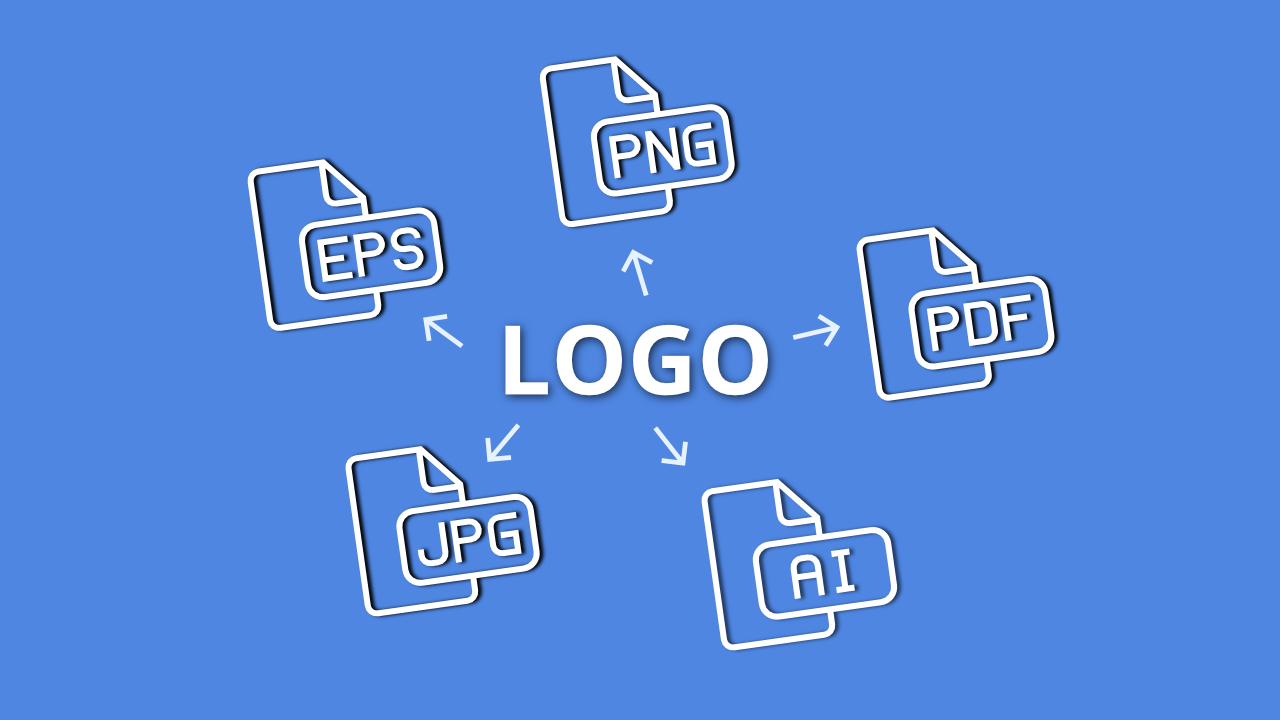
When it comes to logo files, you'll encounter five common formats: PNG, JPG, SVG, EPS, and PDF.
These formats fall into two categories: raster and vector.
Here's the difference:
- Raster files are made of pixels, so they lose quality when you scale them up.
- Vector files are made of lines and points, so they stay sharp at any size.
Now, let's look at what makes each logo file type unique and when to use them.
PNG: The Versatile All-Rounder
A PNG is your go-to for most digital uses. It supports transparent backgrounds and offers high-quality images, making it a better choice than JPG for online use.
Best uses for PNG files:
- Websites and blogs
- Social media profiles and cover photos
- Online shops
For a clean, professional look on digital platforms, choose PNG over JPG.
SVG: The Web Wizard
An SVG logo file is ideal for logos used on the web. Unlike raster files, SVGs are created with mathematical formulas, so they scale without losing quality.
Best uses for SVG files:
- Websites and online applications
- Print materials
- Business cards, clothing, and swag
SVGs are ideal for web designers and developers who need flexibility and scalability in their logo design.
EPS: The Designer's Choice
An EPS file is a vector format designed for Adobe Illustrator. It's perfect for editing and printing logos.
Best uses for EPS files:
- High-quality printing
- Stickers, labels, and clothing
- Sending files to designers for edits
When it's time to print your logo on large items or send it for professional edits, EPS is the format to use.
PDF: The Shareable All-Star
While PDFs are known for documents, they're also useful for logos. They preserve your logo's quality and are easy to share.
Best uses for PDF files:
- Invoices and branded documents
- Menus, eBooks, and reports
- Sharing brand identity guides
PDFs keep your logo and brand materials organized and professional.
In Conclusion: Choose the Right Format and Unlock Your Logo's Potential
Understanding the strengths of each logo file format helps your logo always look professional, no matter where it appears. Whether it is the versatility of PNGs for digital use, the scalability of SVGs, the precision of EPS files for printing, or the shareability of PDFs, each format has its own purpose.
Be ready to present your brand at its best, choose the right logo format, and let your logo represent your brand clearly and consistently.
AI Creator Studio: Simple AI-Powered Logo Creation
Are you looking to create a logo that reflects your brand's identity without a time-consuming design process? Try AI Creator Studio, cutting-edgelogo AI generator . It simplifies logo design by combining creativity with advanced technology.
AI in graphic design is great at capturing the essence of your brand while adding a sleek, modern edge to your logo. With just a few inputs, you can generate unique logo designs that help you stand out in a competitive market.
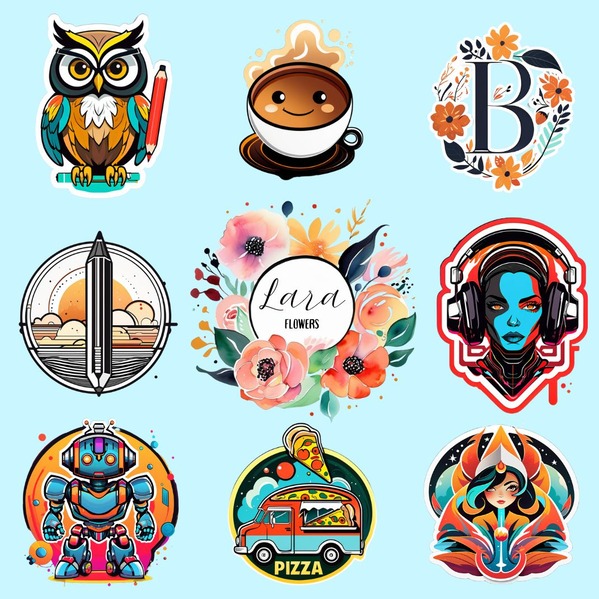
Once you have created your logo, the downloaded .png file can be easily edited and converted into any format you need using an online image converter. Whether it is a JPG, SVG, or PDF, you are just a few clicks away from having your logo ready for any use case.
AI Image Upscaling with Img2Go
Need to upscale your logo or image for larger prints or higher resolutions? That is also possible with Img2Go's Upscale Image AI tool. Whether you are enhancing a logo for a business card or a large poster, Img2Go's AI technology keeps your image crisp and clear, even at larger sizes. Just upload your file, click 'START', and let the AI tool do the rest!
Get started with AI Creator Studio today and turn your logo idea into reality in just a few clicks!
FAQs
1. Which file format should you use to create a logo?
The best file format for your logo depends on how you plan to use it:
- For web use: PNG or SVG are ideal. PNG provides high-quality images with transparency support, while SVG is perfect for scaling across different screen sizes without losing quality.
- For large print: EPS or PDF is recommended. These formats are vector-based, so your logo can be printed in high resolution at any size without distortion.
- For sharing files with clients/designers: EPS or PDF works best. These formats preserve the logo's quality and allow easy editing and resizing by designers.
2. Can I convert a raster logo to a vector file?
Yes, you can convert a raster logo (such as a JPG or PNG) to a vector file (like SVG or EPS), but the process is not always perfect. Raster images are pixel-based and do not scale as well as vector files. To convert them, you will need to use specialized software like Adobe Illustrator, or an online conversion tool. However, the quality of the conversion depends on how complex the image is, and sometimes manual adjustments may be needed for the best result.
3. Why does my logo look blurry when scaled?
Blurriness occurs when a logo is saved in a raster format (like JPG or PNG) and is scaled up. Raster images are made of pixels, and when you enlarge them, they lose sharpness and become pixelated. To avoid this, use a vector format (such as SVG or EPS) for logos. Vector files are made of paths, lines, and curves that retain their clarity and quality, no matter how much you resize them.
4. What common mistakes should I avoid when working with logo files?
- Using raster files for large print jobs: Raster images like JPGs and PNGs lose quality when enlarged. For print, use vector formats (SVG or EPS) to ensure high-quality results.
- Sending JPGs to designers for editing: JPGs are compressed and lose quality with every edit. Instead, send vector files (SVG or EPS) to designers for easy editing and scalability.
- Forgetting to enable transparency when exporting PNGs: PNG files support transparency, but if you forget to enable it, your logo might have a solid background instead of a clean, transparent one. This can cause issues when placing it on different backgrounds.
5. What is the difference between RGB and CMYK color profiles?
- RGB (Red, Green, Blue) is used for digital displays (like screens and websites) and works by mixing light. It is ideal for logos used on websites, social media, or digital media.
- CMYK (Cyan, Magenta, Yellow, Black) is used for print and works by mixing ink on paper. To ensure your logo looks its best in print, use CMYK for print-ready files. Keep in mind that colors can look different on screen (RGB) versus printed (CMYK), so it is important to check your logo's appearance in both.