Turn black and white photos into color with AI in seconds.
or drop, paste, or choose from cloud





The AI image colorizer analyzes each pixel of your black and white photo and predicts the most natural colors. Move the slider to compare the original with the colorized result.
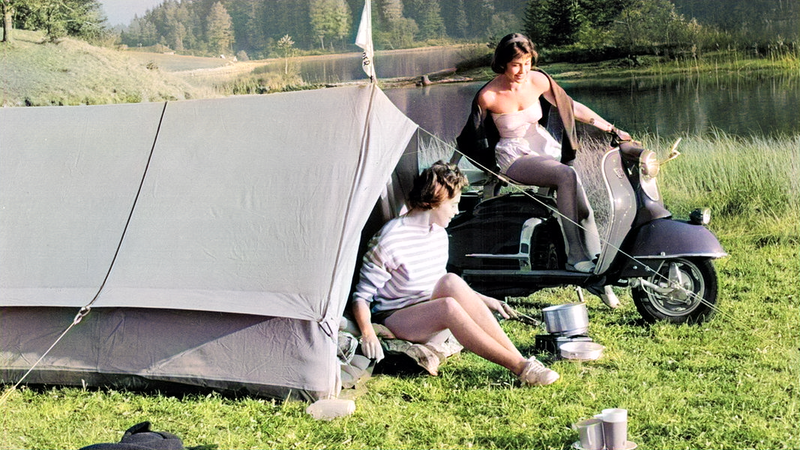
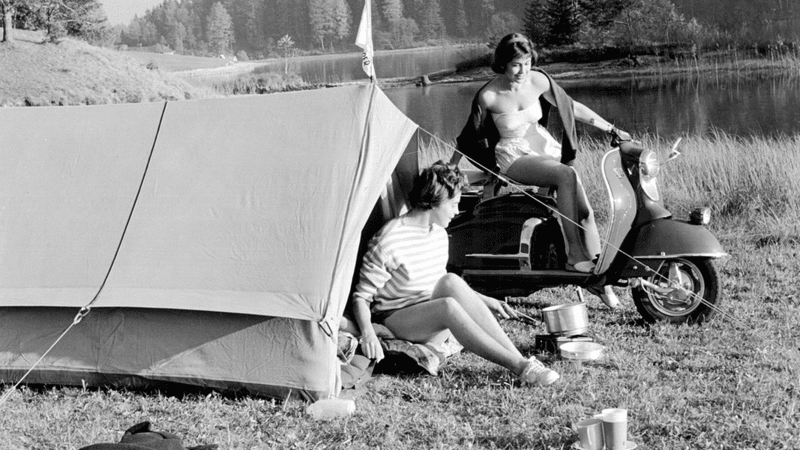
The Nature and People AI model is optimized for outdoor scenes. It adds realistic greens to vegetation, natural blues to skies, and warm earth tones to landscapes. Upload a black and white landscape photo and the AI colorizer handles the rest.
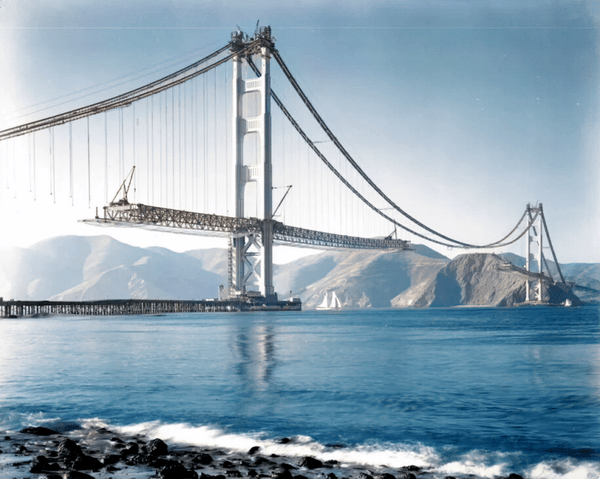
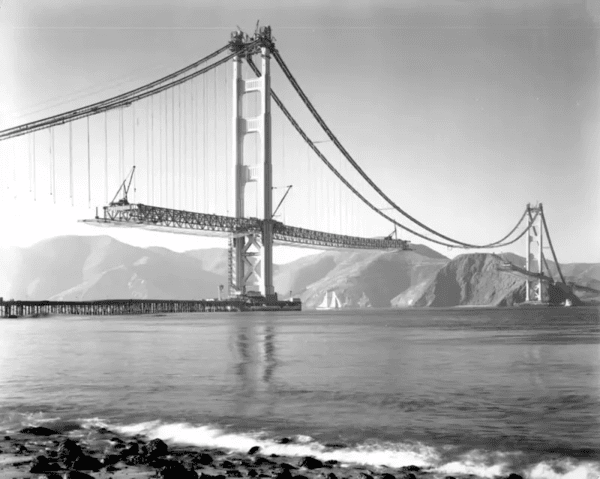
The image colorizer recognizes structures, buildings, and famous landmarks. It applies accurate colors based on deep learning patterns trained on millions of images. Colorize historical photos of cities, bridges, and architecture online.
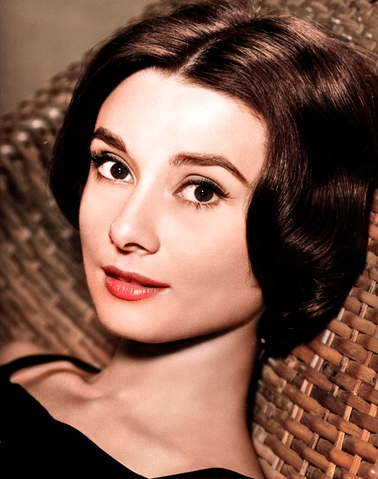
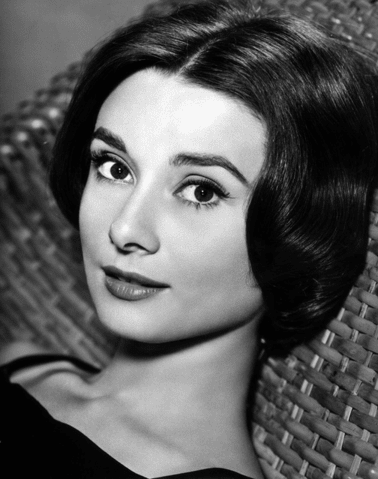
The AI colorizer adds natural skin tones, hair colors, and clothing details to portrait photos. Colorize old family photos and historical portraits to see ancestors and historical figures as they actually looked.
The photo colorizer offers two AI models trained on different image types. The "Nature and People" model is optimized for outdoor scenes, landscapes, portraits, and everyday photography. It produces the most realistic results for family photos, vacation snapshots, and nature images. The "Generic" model works best for illustrations, technical drawings, and images that do not fit standard photo categories.
Select the AI model in the settings panel before processing your image. The default "Nature and People" model handles most black and white photos well. Switch to "Generic" if your image contains non-photographic content or unusual subject matter.
The render factor slider controls the balance between speed and color accuracy. Values range from 7 (fastest processing) to 40 (highest quality). A higher render factor produces richer, more detailed colors but takes longer to process. The default value of 35 delivers excellent results for most photos.
For quick previews or large batches, lower the render factor to 15 or 20. For a single important photo that needs the best possible result, set the render factor to the maximum of 40. The difference is most visible in complex scenes with many color transitions, such as sunsets, gardens, and group portraits.
From family archives to historical research, the image colorizer brings black and white images to life.
Colorize old family photos from parents and grandparents. Add natural colors to wedding pictures, baby photos, and holiday snapshots from the film era.
Bring historical photographs to life with realistic colors. Colorize images of historical events, famous landmarks, and notable figures from the black and white era.
Use colorized images in presentations, social media posts, and art projects. Transform grayscale sketches and drawings into colorful illustrations with the AI colorizer.
The image colorizer supports all common image formats including JPG, PNG, WebP, BMP, TIFF, GIF, and more. Upload your black and white photo in any format and the tool preserves the original file type. No manual format conversion is needed before or after colorization.
Batch processing lets you colorize multiple photos at once. Upload an entire folder of old black and white images and the AI processes each one automatically. Every colorized photo is available as a separate download. This saves hours compared to colorizing photos one by one.
All uploads are encrypted during transfer. No one can view or access your files. The colorization process is fully automated with no human review. Your photos are not used to train AI models, and you retain full copyright and ownership of every image you upload and colorize.
Click "Choose File" or drag and drop a black and white image. All common formats are supported.
Pick "Nature and People" or "Generic" model. Adjust the render factor for quality control.
Click "Colorize" and wait a few seconds. Download your colorized photo in the original format.
The AI image colorizer uses deep learning algorithms trained on millions of color photographs. It analyzes the shapes, textures, and objects in your black and white photo and predicts the most likely colors for each area. The result is a natural-looking colorized image with realistic tones for skin, sky, vegetation, and other elements.
Yes, the photo colorizer is free to use with a daily limit. Free users can colorize 2 photos per day. Paid plans remove the daily limit and give access to batch processing for colorizing multiple images at once.
The image colorizer supports JPG, PNG, WebP, BMP, TIFF, GIF, ICO, EPS, EXR, and more. Upload your photo in any supported format and the tool outputs the colorized image in the same format. No manual format conversion is needed.
Yes, the colorize photo tool supports batch processing. Upload multiple black and white images at the same time and the AI processes each one automatically. Every colorized photo is available as a separate download.
The "Nature and People" model is trained on outdoor scenes, landscapes, and portraits. It produces the best results for family photos, nature shots, and everyday photography. The "Generic" model handles illustrations, technical drawings, and unusual image types that do not fit standard photo categories.
Upload your old black and white family photo to the colorize photo tool. Select the "Nature and People" AI model for the best results with portraits and group photos. Set the render factor to 35 or higher for rich, detailed colors. The AI adds natural skin tones, hair colors, and clothing details automatically.
Yes, your photos are safe. All uploads use encrypted transfer. The colorization process is fully automated with no human review. Your files are not used for AI training, and you keep full copyright and ownership of your images.

A step-by-step guide to adding color to old black and white images using AI colorization.
Read article
Restore old, damaged photos with AI. Remove noise, fix imperfections, and enhance image quality.
Read article
Use AI to increase image resolution and enhance quality without losing detail.
Read article
Learn the differences between JPEG and PNG and when to use each format for your images.
Read article
Understand how JPEG compression reduces file size and how it affects image quality.
Read article
Convert between JPG, PNG, WebP, BMP, TIFF, and other image formats online.
Read article