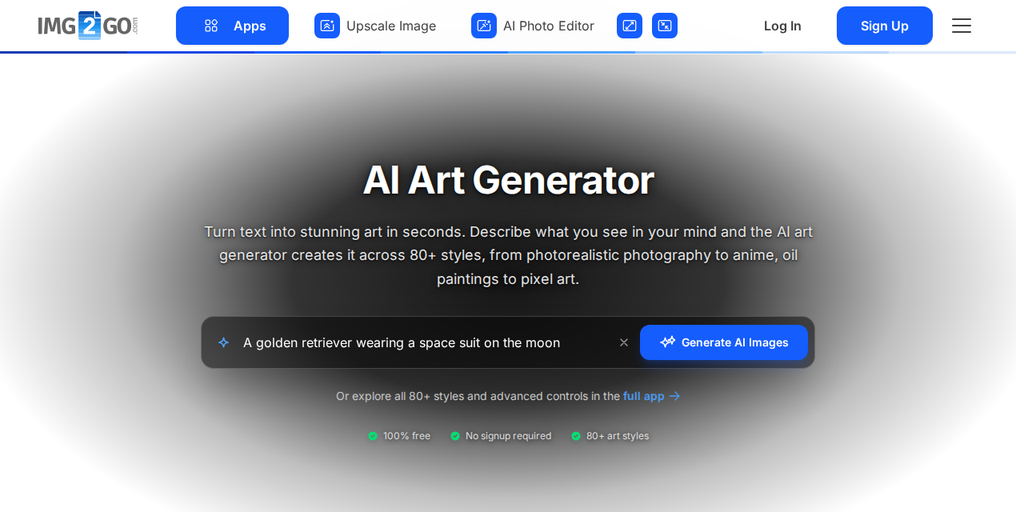
Img2Go's AI Art Generator, part of AI Creator Studio, is a powerful app that allows you to create stunning AI images with ease. Whether you are a designer, a marketer, or someone who loves experimenting with AI-generated art, these tips and tricks will help you get the most out of the tool.
From refining prompts to using premium features, here are 10 top tips to generate and improve your AI images.
1. Generate Images with Solid-Colored Backgrounds
Need a clean, distraction-free background? Just add "isolated on (color) background" to your text prompt.
Make your subject stand out, ideal for product images or digital content.
Plus, removing the background lets you seamlessly use the subject in other designs, giving you more flexibility for creative projects.
2. AI Upscale & Edit with Img2Go
Need to enhance or modify your AI-generated images?
After generating images, open the one you like and enhance it with the Upscale Image or Photo Editor app.
3. Advanced Settings for More Control
- Adjust Prompt Weight - Premium users can fine-tune how much influence their input has on the final output, giving them precise control over the creative process.
- Choose the Quality: Fast for quick results, or Normal and Quality for more detail (available for premium users).
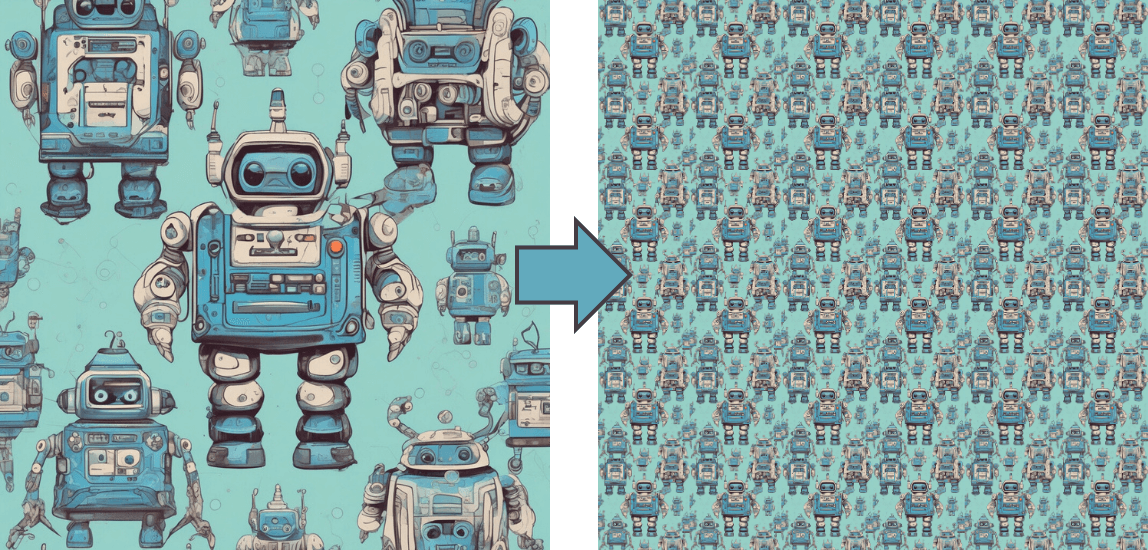
4. Create Perfectly Balanced Patterns
Want seamless, eye-catching patterns? Use structured prompts to create high-resolution designs perfect for wallpapers, textiles, and branding.
To ensure your pattern is seamless, you can also use a seamless texture checker available online. Simply upload your pattern to the checker, and it will verify if the pattern repeats seamlessly.
5. Use the 'Negative Prompt' for Cleaner Outputs
Annoyed by unwanted elements in your AI-generated images? Use negative prompts to exclude them.
Universal negative prompts:
- ugly, tiling, poorly drawn hands, poorly drawn feet, poorly drawn face, out of frame, extra limbs, disfigured, deformed, body out of frame, bad anatomy, watermark, signature, cut off, low contrast, underexposed, overexposed, bad art, beginner, amateur, distorted face, blurry, draft, grainy
6. Use Image-to-Image Generator for Unique Variations
Img2Go's Image-to-Image AI Generator uses artificial intelligence to create visually similar images based on any image you upload. Simply provide a reference photo, and AI will generate variations while preserving its style, lighting, and composition.
- Transform Your Images with Diverse Styles: Convert illustrations into photorealistic images or turn realistic photos into anime-style artwork. Explore many different looks.
- Create Custom Visuals Finding the perfect image can be hard. With Img2Go, you can instantly generate a unique image that fits your needs.
7. Easily Create Coloring Pages
The AI Art Generator makes it easy to create custom coloring pages, perfect for print or digital coloring.
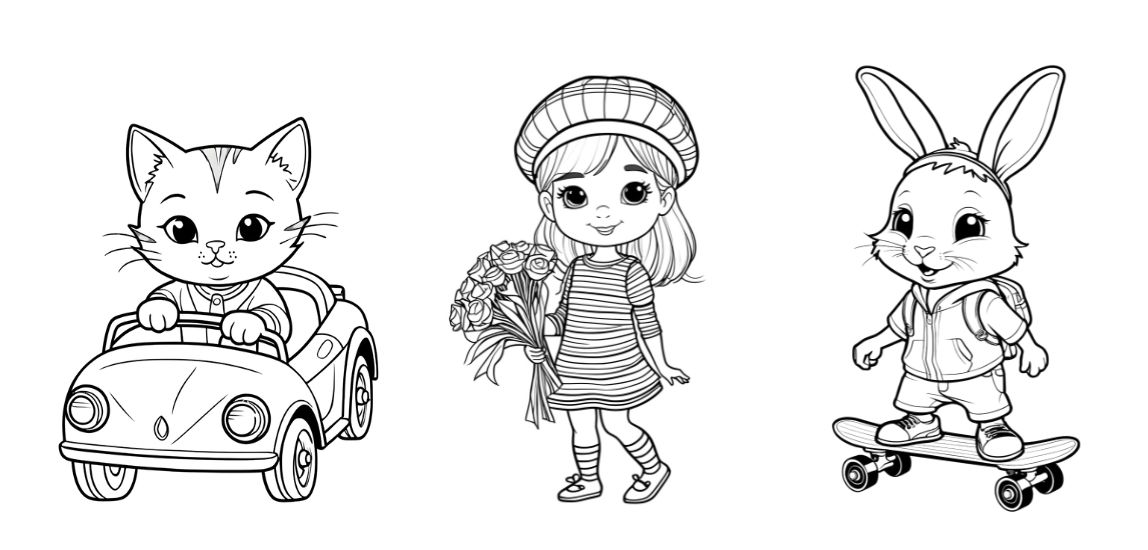
Create fun and engaging line art for both kids and adults.
8. Use Styles and Effects for Fine-Tuned Results
In the Settings tab, fine-tune every detail: pick one or more styles and blend them, then choose the color tone, lighting, and camera angle so your vision comes to life as you imagine.
Want a cinematic look? A dreamy watercolor effect? A hyper-realistic masterpiece?
9. Access Premium Art Styles for Exclusive Looks
Unlock a variety of premium styles like Anime, Line Art, Cyberpunk, Watercolor and Pixel Art with a Subscription.
These styles allow for even more customization and creative possibilities!
10. Experiment with Aspect Ratios for Social Media & Prints
Ensure your images fit perfectly across different platforms. Use 16:9 for YouTube thumbnails, 9:16 for Instagram Stories, and 2:3 for Pinterest.
Adjusting resolution settings also helps create high-quality prints suitable for framing.
Bonus Tip
Experiment with AI Photo Editor to modify existing elements or seamlessly add new objects to your images. Read more about it here.
Final Thoughts
With AI Art Generator, your creativity knows no limits!
By applying these top tips and tricks, you can refine your AI-generated images, experiment with unique styles, and enhance your artwork like never before. Easily fine-tune details or add the perfect finishing touch. There is always room to elevate your creations.
Try these tips today!
Start exploring, experimenting, and pushing the boundaries of AI-generated art.